 VitaLinks
Guide › Getting started
Getting started
From opening VitaLinks for the first time to having it set up your way. About ten minutes, no rush.
1. Open VitaLinks
VitaLinks works the same in your browser and on your phone. Pick where to start; later you can use both with the same data.
- In your browser: go to vitalinks.eu/app. Nothing to install and no account to create.
- On your phone: install the app. It’s the one that includes calories from a photo and the connection to Health Connect or Apple Health.

Just want a look? Open the demo with sample data: you’ll see the app filled in, and nothing you tap is saved.
2. Get to know the Today screen
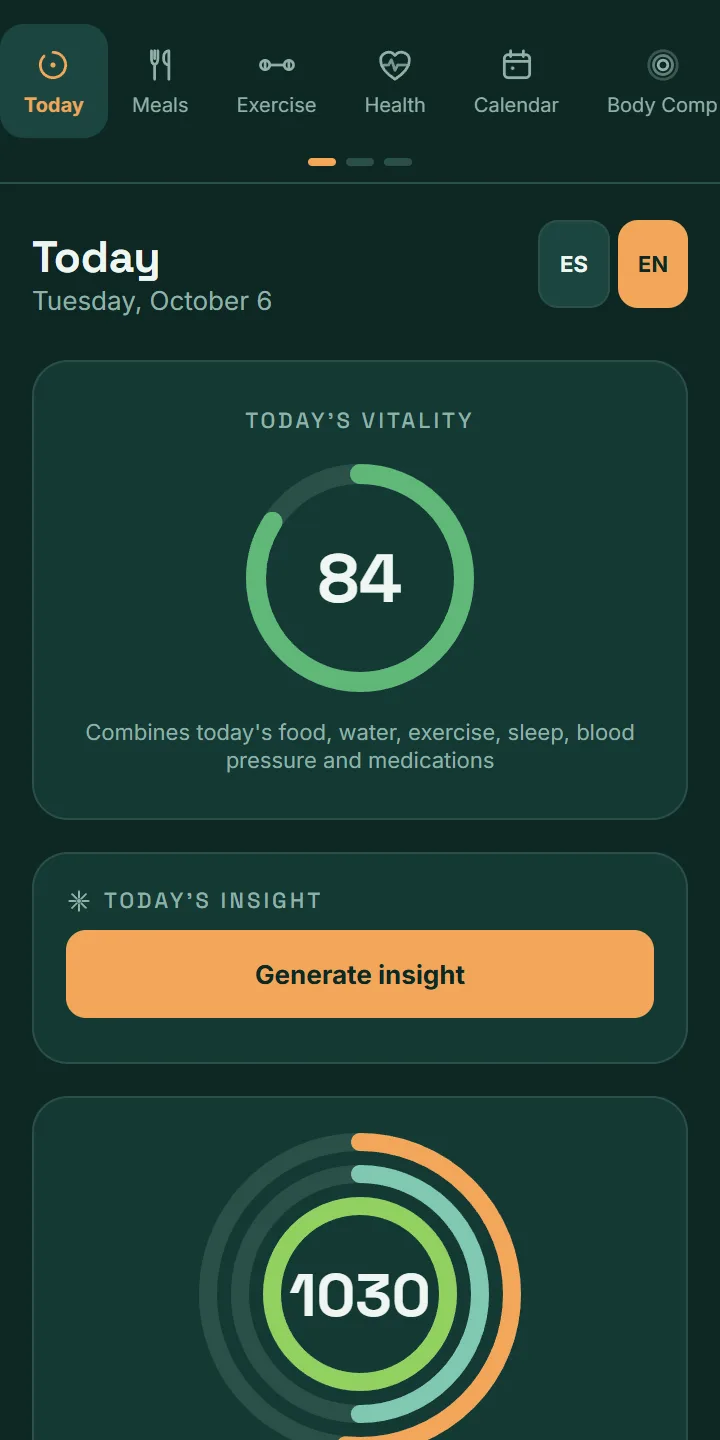
It’s the summary of your day. It fills in with what you log in the rest of the app.
- Today’s vitality: a score from 0 to 100 that combines food, water, exercise, sleep, blood pressure and medications.
- Calories, water and exercise: how far along you are against your daily goal.
- Macronutrients and micronutrients: the total for the day’s meals.
What you log right here
- Water: tap one droplet per glass or bottle, or type the millilitres and tap Add.
- Weight: type it into Weight (kg).
- Sleep: type the hours you slept into Sleep (h).
One droplet, your measure. Each droplet is worth whatever you decide (a 250 mL glass, a 500 mL bottle). Change it in Settings → Droplet size (mL).
3. Move around the tabs
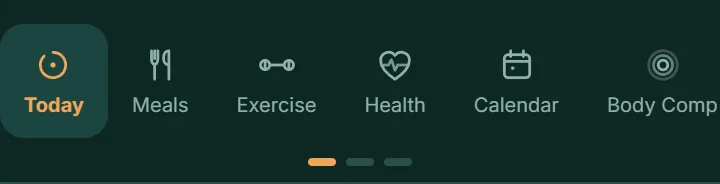
Each tab is one part of your day. On a phone they sit in a strip at the top: swipe it sideways to see the rest. On a computer they appear in a column on the left.
- For logging: Today, Meals, Exercise, Health and Calendar.
- For seeing how you’re doing: Body Comp, Progress, Nutrition and Forecast.
- At the end of the strip: Settings, Export and Import.
Change the language with the ES and EN buttons, top right.
4. Keep only what you use
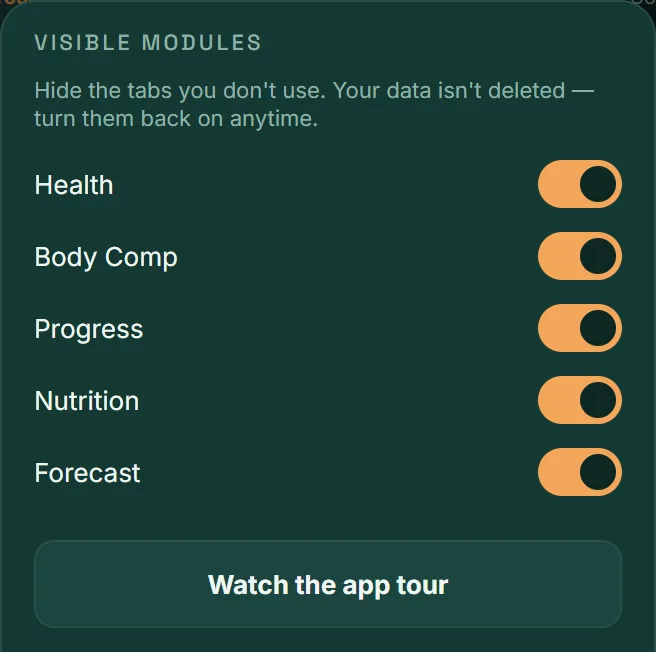
You don’t have to use every tab. If you only want to track meals and exercise, hide the rest.
- Open Settings.
- Scroll down to Visible modules.
- Turn off the tabs you don’t need: Health, Body Comp, Progress, Nutrition or Forecast.
- Tap Save.
Nothing is deleted. Hiding a tab only takes it out of view. Turn it back on whenever you like and your data will still be there.
Right below is Watch the app tour, in case you want to replay the first-day introduction.
5. Save your progress
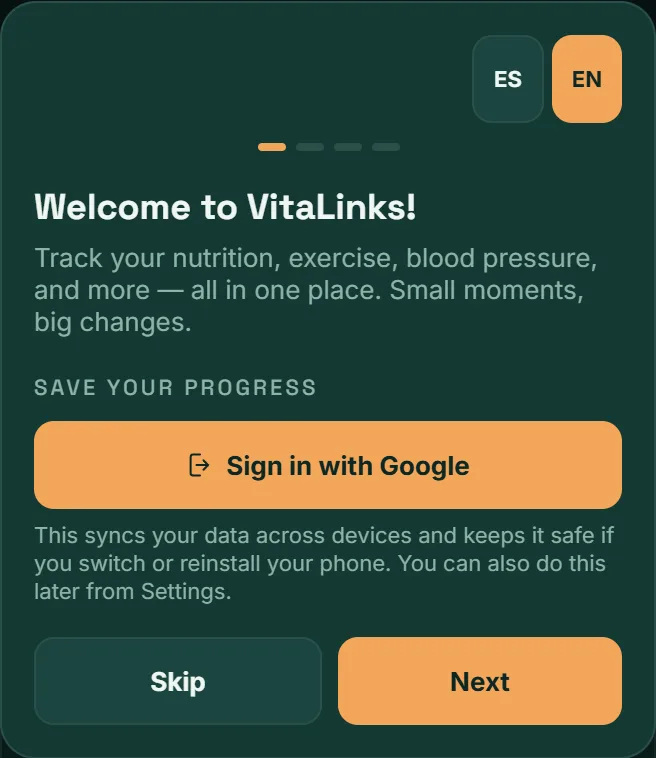
Without an account, what you log stays on that device. With an account, it syncs between your browser and your phone, and you don’t lose it if you change phones.
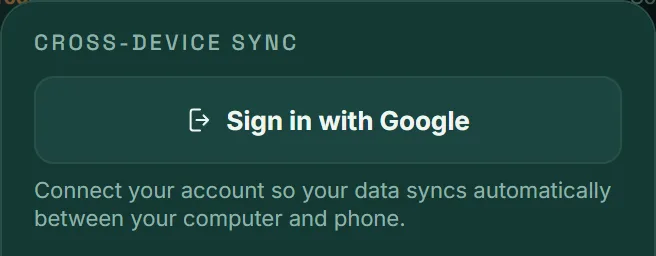
- Open Settings and scroll down to Cross-device sync.
- Tap Sign in with Google. On iPhone and iPad you can also use Sign in with Apple.
- Sign in with the same account on your other devices. What you had already logged uploads by itself.
The first time you open the app, the welcome screen offers the same thing. If you’d rather decide later, tap Skip.
Rather not create an account? Use Export to download a backup. It’s encrypted with a passphrase you choose; keep it safe, because without it the backup can’t be opened.
6. Set your goals
VitaLinks starts with general goals. Swap them for your own in Settings → Daily goals, or with the Adjust daily goals button at the bottom of the Today screen.
- Calories per day.
- Water in litres, and the size of each droplet.
- Exercise in minutes.
Not sure what calorie goal to set? In Forecast, enter your height, date of birth and target weight: the app works out a recommended goal and you can apply it with Use this goal.
In the mobile app you can turn on a Daily reminder in Settings: a nudge at the time you choose if you haven’t logged your day yet.
Frequently asked questions
Do I need an account to use VitaLinks?
No. Daily logging works without an account and for free, in your browser and on your phone. The account is only for syncing your data across devices and not losing it.
I signed in and can’t see my data on the other device
Check it’s the same account on both. In Settings, under Cross-device sync, you’ll see when the last sync happened. If it still doesn’t appear, write to us from Settings → Send feedback.
I forgot to log yesterday. Can I do it today?
Yes. Open Calendar, tap the day and add what’s missing. If the app notices yesterday was left empty, it reminds you with the Fill in yesterday button.
Can I use it in light mode?
Yes. In Settings → Appearance choose System, Light or Dark.